

XK ONE MAC · LOCAL GUIDE
XK ONE Mac User Guide
Ten chapters covering first setup and daily care. Chapter illustrations are being prepared.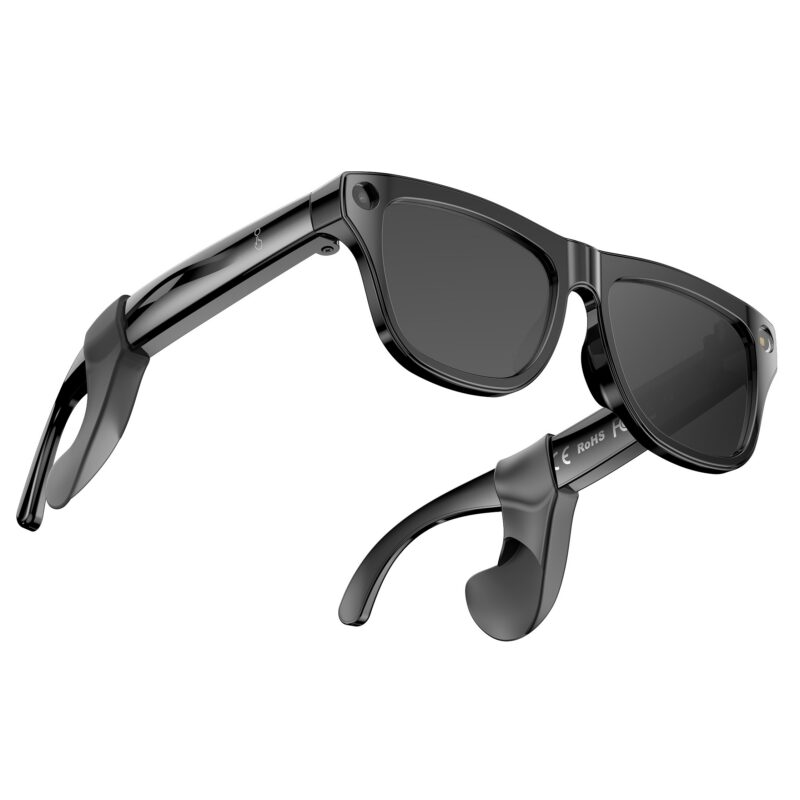
01 · GUIDE
Unbox and identify parts
Check XK ONE Mac glasses (reference model E13B), the magnetic cable and your bundle accessories. Inspect lenses and temples for damage.Identify the front and rear function buttons, touch panels, camera, indicator and charging contacts using the manual. Touch panels are not mechanical buttons.
Activate and connect on a desk before wearing. Follow your supplied instructions for any batch or app control differences.
Guide image coming soon
02 · GUIDE
Magnetic charging and indicators
For first use, attach the magnetic cable to charge and activate the glasses. Check that temple contacts are dry and clean.The manual identifies flashing orange as low charge, steady orange as charging and steady green as fully charged.
If charging feedback is absent, check magnetic alignment, contacts and power. Remove the glasses and disconnect power if unusual heat occurs during charging.
Guide image coming soon
03 · GUIDE
Power and pairing mode
Identify the front function button in the manual: holding it about 3 seconds powers on or off. First activation enters pairing mode.A single press of the rear button starts or ends the AI assistant; holding it about 6 seconds enters pairing mode.
Pairing is different from a factory reset. Holding both buttons is a reset action; do not make this your first response to a connection issue.
Guide image coming soon
04 · GUIDE
Connect AIBuds
Install AIBuds through the official source in the supplied manual. That edition lists Android 10 or iOS 13 minimum; check the app store for installation requirements.Enable phone Bluetooth, sign in to AIBuds and choose Add Device. Follow the app with the glasses in pairing mode.
Allow Bluetooth, microphone and other access when needed for a feature. Test connection and sound before photo transfer or online AI use.
Guide image coming soon
05 · GUIDE
Music and calls
After connecting, play music quietly and confirm output through the glasses before raising volume to a comfortable level.Default manual gestures are left-temple single tap for volume up and double tap for down; right-temple single tap for play/pause, double for next and triple for previous.
Calls and capture share controls, so check the current context and app settings. Use enabled voice answer or decline commands where available, and avoid prolonged high volume.
Guide image coming soon
06 · GUIDE
Photos, video and audio recording
Keep the lens clean and make a short test in good light while stationary. Inform people and obtain permission before recording.The manual assigns a front-button press to a photo, a roughly 1.5-second hold to start video and a short press to stop. Double press starts audio recording, then short press stops; call context changes these controls.
Review and transfer files using AIBuds prompts. Confirm important files are saved to the phone before clearing device storage or resetting.
Guide image coming soon
07 · GUIDE
AI assistant and recognition
After connecting AIBuds, start the assistant with the rear function button or the wake word enabled for your language, then ask a short question.For image recognition, keep the object in view in good light and submit a photo as directed by the app. Test with an ordinary object first.
Online questions may require phone internet and service access. Recognition and answers can be wrong; verify important information independently and do not use them for safety decisions.
Guide image coming soon
08 · GUIDE
Translation and meeting notes
Choose an available translation mode in AIBuds and check source and target languages. Test the direction with a short sentence.Take turns speaking in a quiet place and review the text or audio result. Network access and clear speech affect the experience.
Get participants’ consent before recording or summarising a meeting. Check names, numbers and action items before sharing or saving the result.
Guide image coming soon
09 · GUIDE
Care, storage and updates
Clean with a soft dry or lens cloth. Avoid alcohol, corrosive or abrasive cleaners and do not spray perfume directly onto the glasses.Avoid rain, bathrooms and steam. If damp, disconnect power and allow complete drying before wearing or charging.
Check updates through AIBuds and maintain charge and connection during installation. Charge and turn off before long storage; the manual advises recharging at least every three months.
Guide image coming soon
10 · GUIDE
Connection and use checks
If discovery fails, confirm charge, power and pairing mode, then check phone Bluetooth and AIBuds permissions before retrying nearby.For connection without sound, check phone audio output and both volume settings. For online-only failures, separately check internet and app sign-in.
For an unresponsive device, consult the manual’s restart procedure. A factory reset affects settings: save files and consult support first. Provide versions and symptoms, never account passwords.
Guide image coming soon
NEED MORE HELP?