

METEER · LOCAL GUIDE
Meteer User Guide
Ten chapters from first setup to everyday interaction. Chapter illustrations are being prepared; the original PDF is in Chinese.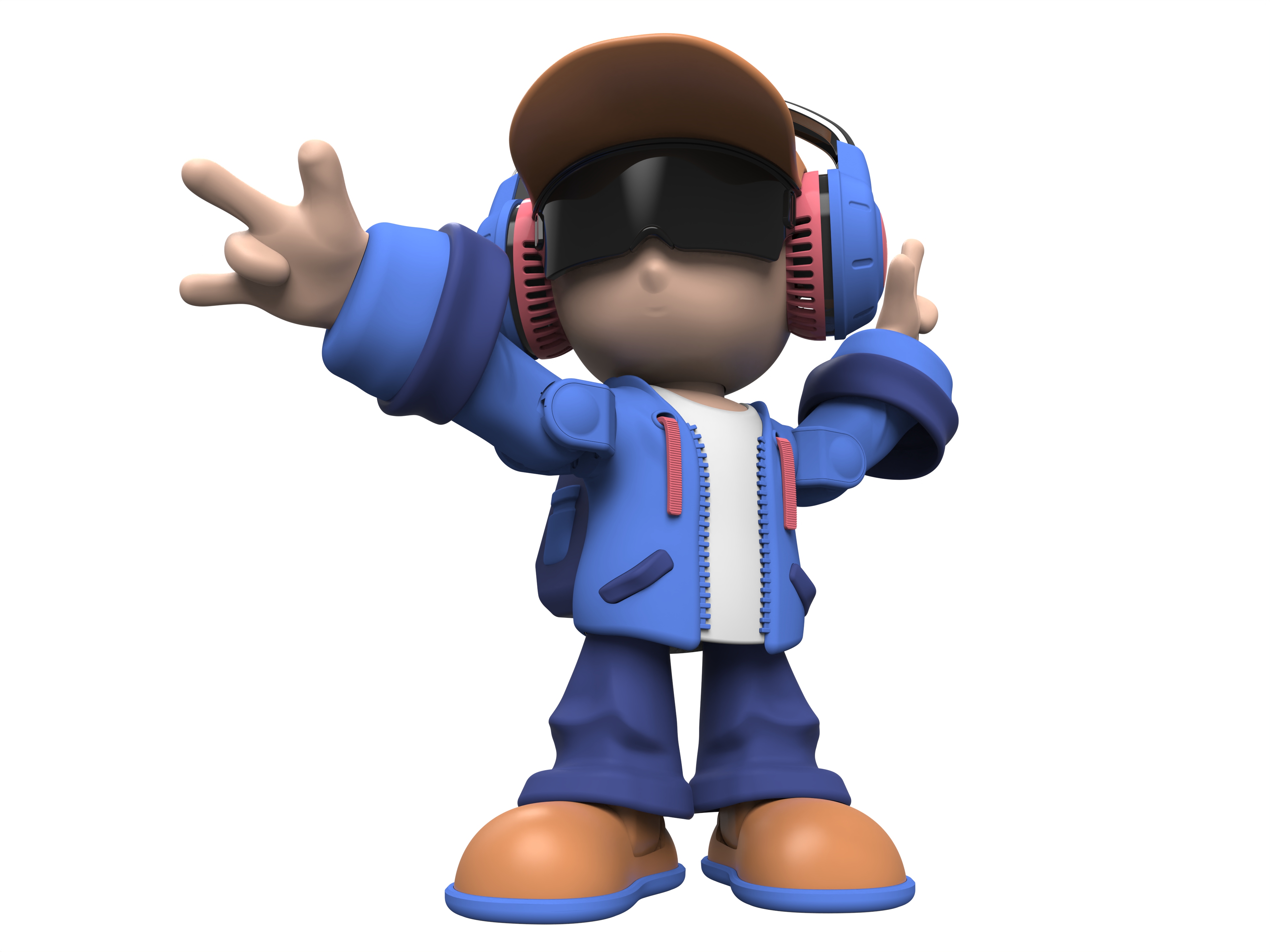
01 · GUIDE
Unbox and place safely
Check for the robot, user manual, reset pin and USB Type-C cable. Scarves, scene speakers and additional robots are not listed in the standard package.Use a flat, stable surface away from edges and liquids. Leave room for arm and foot movement. Check the device and cable for damage before use.
Guide image coming soon
02 · GUIDE
Charge and power on
Charge through USB Type-C using a 5V 2A supply. The manual estimates about 70 minutes from empty to full at 25°C and around two hours of use; actual times vary with volume and activity.Hold the rear power button for about four seconds to switch on or off. A short press returns to the previous menu; a quick double press toggles movement.
Guide image coming soon
03 · GUIDE
Set up Wi-Fi and activate
Open the Meteer WeChat mini program referenced in the manual, choose network setup and activation, and follow the Bluetooth pairing steps. Enter the 2.4 GHz Wi-Fi name, password and device serial number. 5 GHz Wi-Fi is unsupported.Find the serial number near the packaging barcode, by the USB-C port or in version information. Wait for the connection confirmation before testing voice features. Keep network credentials and the serial number private.
Guide image coming soon
04 · GUIDE
Touch controls and menus
Touch the head to confirm the highlighted option. Use the left or right ear buttons to move between menu items, then follow the current mode instructions. Main modes include voice chat, Bluetooth, dance, voice changer, choreography and settings.Ear buttons may adjust volume in music or chat modes. Their role depends on the mode. Press the rear power button briefly to go back.
Guide image coming soon
05 · GUIDE
Voice chat and AI characters
Enter voice chat while connected to the network and wake the robot with “Hi Meteer”. Start with an introduction, music, dance or expression request. The mini program offers real-time and single-turn conversation options.Configure a chat character in the mini program AI character section. Online conversation depends on connectivity and service availability. A specific language count or permanent memory is not confirmed by this guide.
Guide image coming soon
06 · GUIDE
Bluetooth music and control
Enter Bluetooth mode and select the device whose name starts with Meteer in your phone Bluetooth settings. After pairing, play music in a phone music app to accompany the robot dancing.The mini program remote controls direction, expressions and actions. Use the ear buttons to adjust volume during music playback. To disconnect, hold the head touch control for about three seconds as described in the manual.
Guide image coming soon
07 · GUIDE
Dance modes and group dancing
Enter dance mode, choose a dance option with the ear buttons and touch the head to confirm. A quick double press of the power button toggles body movement.Group dancing requires additional Meteer robots. Connect the phone and robots to the same Wi-Fi, then select devices in the mini program group-control screen for synchronized performance. Multiple robots shown in scenes are not a bundled quantity.
Guide image coming soon
08 · GUIDE
Create routines and change voices
In choreography mode, position the joints as shown in the manual. Press the left button briefly to change the expression and the right button to record the pose and expression. Repeat for up to 100 actions, then touch the head to play the routine. Move joints gently without forcing them.In voice changer mode, choose a voice with the ear buttons, confirm with a head touch and follow the mode prompts.
Guide image coming soon
09 · GUIDE
Settings and firmware updates
Use settings to check battery level, Wi-Fi and version information, or adjust lighting and volume. Follow the Wi-Fi setup prompts if you need to change networks.Connect power and maintain a stable network before starting an OTA update. Confirm an available update on screen and wait until it finishes. Do not disconnect power or force a reset during installation.
Guide image coming soon
10 · GUIDE
Care, troubleshooting and support
Clean with a soft dry cloth. Avoid liquids, harsh cleaners, drops and opening the device. For connection problems, check 2.4 GHz Wi-Fi, credentials and signal. If movement is absent, check whether movement was toggled off.Try a normal restart for a general fault. If shutdown is unavailable, gently use the reset pin in the reset hole as shown in the manual, then check settings. Stop use for persistent faults, unusual heat or damage and contact website support with the model, symptoms and version, without sharing passwords. For purchases here, the website policy takes precedence over the PDF warranty wording: one-year cover for non-user-caused faults; paid repairs for user-caused damage or after warranty; repair shipping is paid by the customer.
Guide image coming soon
NEED MORE HELP?