

PRODUCT · GUIDE
Loona Companion Robot Guide
Archived English manufacturer manual for KY004LN01; cloud services may differ with current firmware.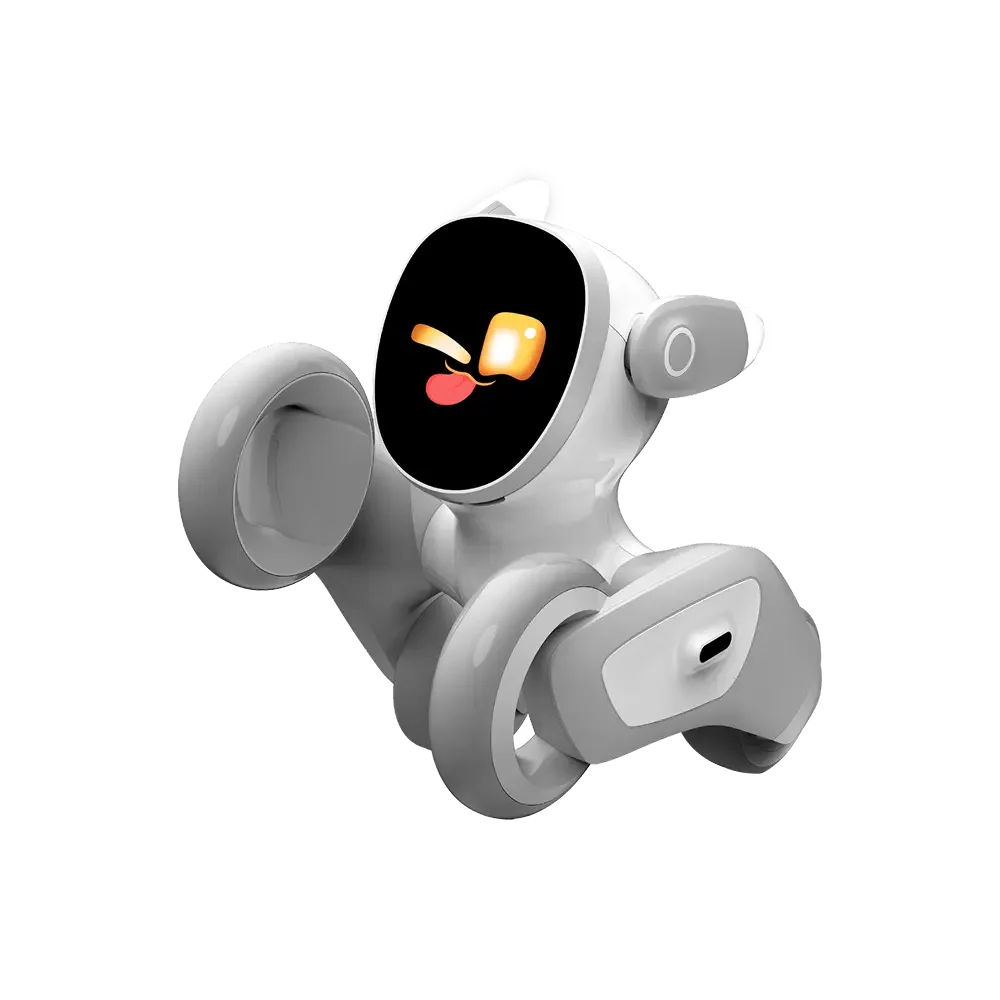
01 · GUIDE
Product and documentation
Archived English manufacturer manual for KY004LN01; cloud services may differ with current firmware.Loona combines an expressive screen, moving ears and agile motion with vision, depth sensing and touch interaction. Choose Standard or Charging Dock edition; the latter includes a charging dock. Online conversation and app services depend on region and current software.
Guide image coming soon
02 · GUIDE
Power and charging
Use a 5V/2A supply as specified in the manual and charge via USB-C. Dock charging requires the dock edition; follow its instructions and keep a level, clear return path.Guide image coming soon
03 · GUIDE
First power-on
Place Loona on a safe floor and hold the neck power button for about 3 seconds to switch on or off. Keep the wheels clear while it starts.Guide image coming soon
04 · GUIDE
Connection and pairing
Install the Loona app and add a device. The archived manual describes holding the power button about 7 seconds to display the setup QR code; scan and connect as directed in the app. Current screens may differ.Guide image coming soon
05 · GUIDE
Everyday interaction
The English manual uses “Hello Loona” as the wake phrase. Wait for a response before giving a command. Gently touch the head for feedback; network conversation requires a working connection.Guide image coming soon
06 · GUIDE
Controls and settings
Manage available activities and preferences in the app. Grant camera, microphone and remote-feature permissions only as needed; available services depend on the current version.Guide image coming soon
07 · GUIDE
Editions and accessories
Standard and Charging Dock are separate price options; Charging Dock includes a dock. Toys, props and multiple robots shown in images are not automatically included.Guide image coming soon
08 · GUIDE
Care and updates
Power off and disconnect charging before cleaning with a dry soft cloth. Keep water out of ports. During an app-guided update, maintain power and network stability.Guide image coming soon
09 · GUIDE
Troubleshooting
Check charge, Wi-Fi and app connection first. The archived manual describes a roughly 10-second hold for forced shutdown when unresponsive; this is not an account-erasing factory reset.Guide image coming soon
10 · GUIDE
Safety and support
Use on a level indoor floor, away from stairs, edges, water and intense direct light. Do not rely on sensors to guarantee fall protection.Zoowai: One-year warranty for non-user-caused faults. User-caused damage and out-of-warranty repairs are chargeable; the customer pays repair shipping.
Guide image coming soon
NEED MORE HELP?